Facebook Live Shopping
Facebook Live Shopping allows you to attach your product catalog directly to live video broadcasts on Facebook. Viewers can explore product details, select variants, and place orders directly on the livestream screen or within Messenger without leaving the video broadcast.
When integrated with AhaChat, all order information generated during the livestream is automatically synchronized with your management dashboard. This allows you to trigger automated chatbot flows to confirm orders, collect shipping information, and send tracking updates instantly.
Note: Facebook Live Shopping requires your Facebook Page to be connected with AhaChat and to have a valid product catalog configured in Meta Commerce Manager.
How Facebook Live Shopping Works
The Facebook Live Shopping workflow with AhaChat consists of five seamless steps:
- Sync Products: Push your product catalog from AhaChat to Facebook Catalog.
- Configure on AhaChat: Create a Messenger Live Shopping session to select the catalog, schedule the broadcast window, and map the order ID attribute.
- Broadcast on Facebook: Open Facebook Live Producer and configure your livestream settings.
- Pin Products During Live: During the broadcast, pin featured products to the screen so viewers can make 1-tap purchases.
- Automate Order Processing: Meta forwards order data to AhaChat, saving it under Sales > Orders and triggering automated chatbot follow-up flows.
Key Benefits of Live Shopping with AhaChat
- Higher Conversion Rate: Viewers see real-time product demonstrations and can purchase with one tap without typing complicated comment syntax or waiting for manual agent replies.
- Zero Missed Orders: Orders are automatically captured with customer profiles and order IDs, eliminating missed comments and order poaching.
- Automated Customer Care: Trigger chatbot flows to send instant order confirmations, receipts, shipping address collection forms, and notify agents via Livechat.
- Centralized Management: Manage inventory, order statuses, and customer conversations from a single dashboard.
Prerequisites
Before starting your live shopping broadcast, ensure you meet the following requirements:
| Item | Requirement |
|---|---|
| Facebook Page | Connected to AhaChat with Admin permissions on both the Page and Business Manager. |
| Facebook Catalog | Created and synchronized from AhaChat to Meta Commerce Manager. |
| Preparation Window | Complete product synchronization at least 2 hours before the broadcast to allow Meta sufficient review time. |
| Broadcasting Tool | Access to Facebook Live Producer or compatible streaming software (OBS Studio, vMix, Prism Live Studio, etc.). |
| Commerce Policies | Products and broadcast content must comply with Meta Commerce Policies and Community Standards. |
Step 1: Connect Facebook Catalog and Sync Products
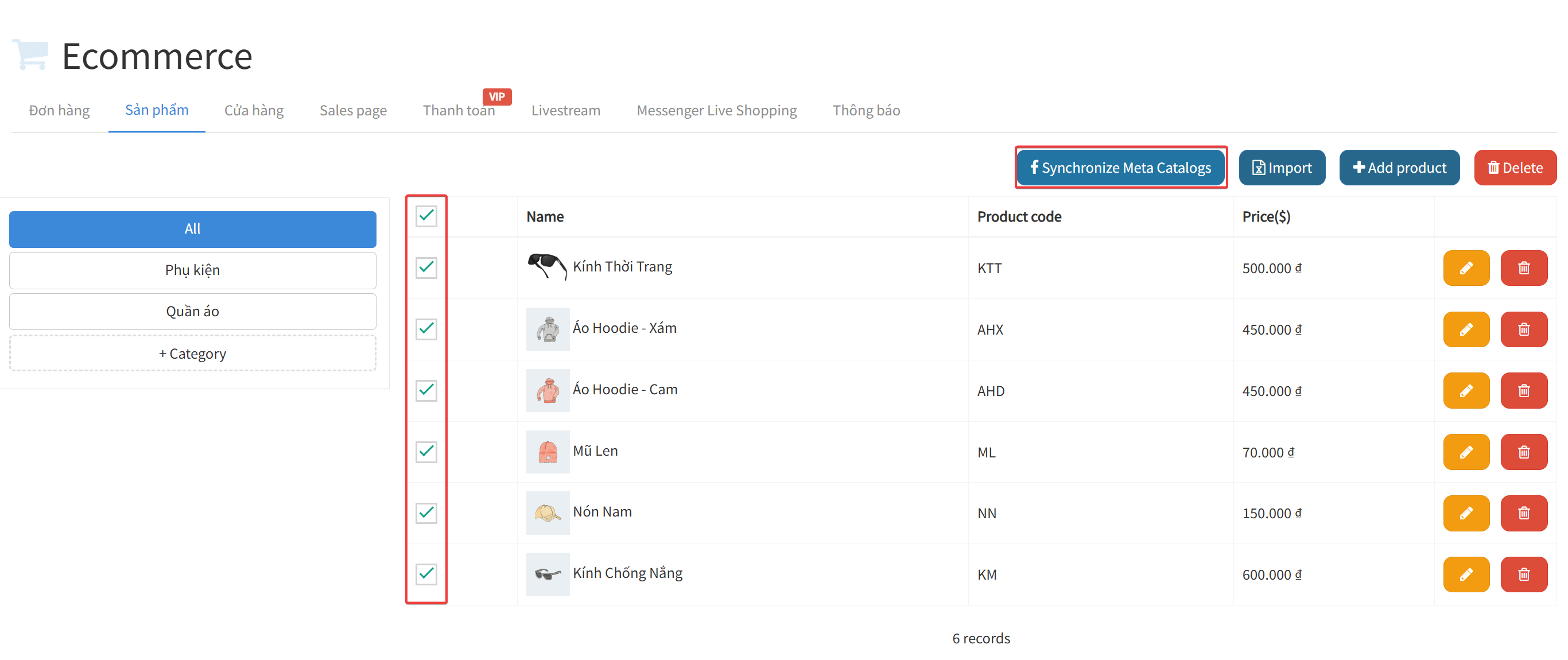
To make products available in your livestream shopping cart, first connect your Page to Facebook Catalog and sync your items to Meta.
- Log in to AhaChat and select your Facebook Page.
- Configure the Facebook Catalog connection and sync items from your product inventory to Meta.
- In your Catalog settings on Meta, ensure that Show catalog on Messenger is enabled.
For step-by-step instructions on connecting and syncing products, refer to:
🔗 Facebook Catalog Integration Guide
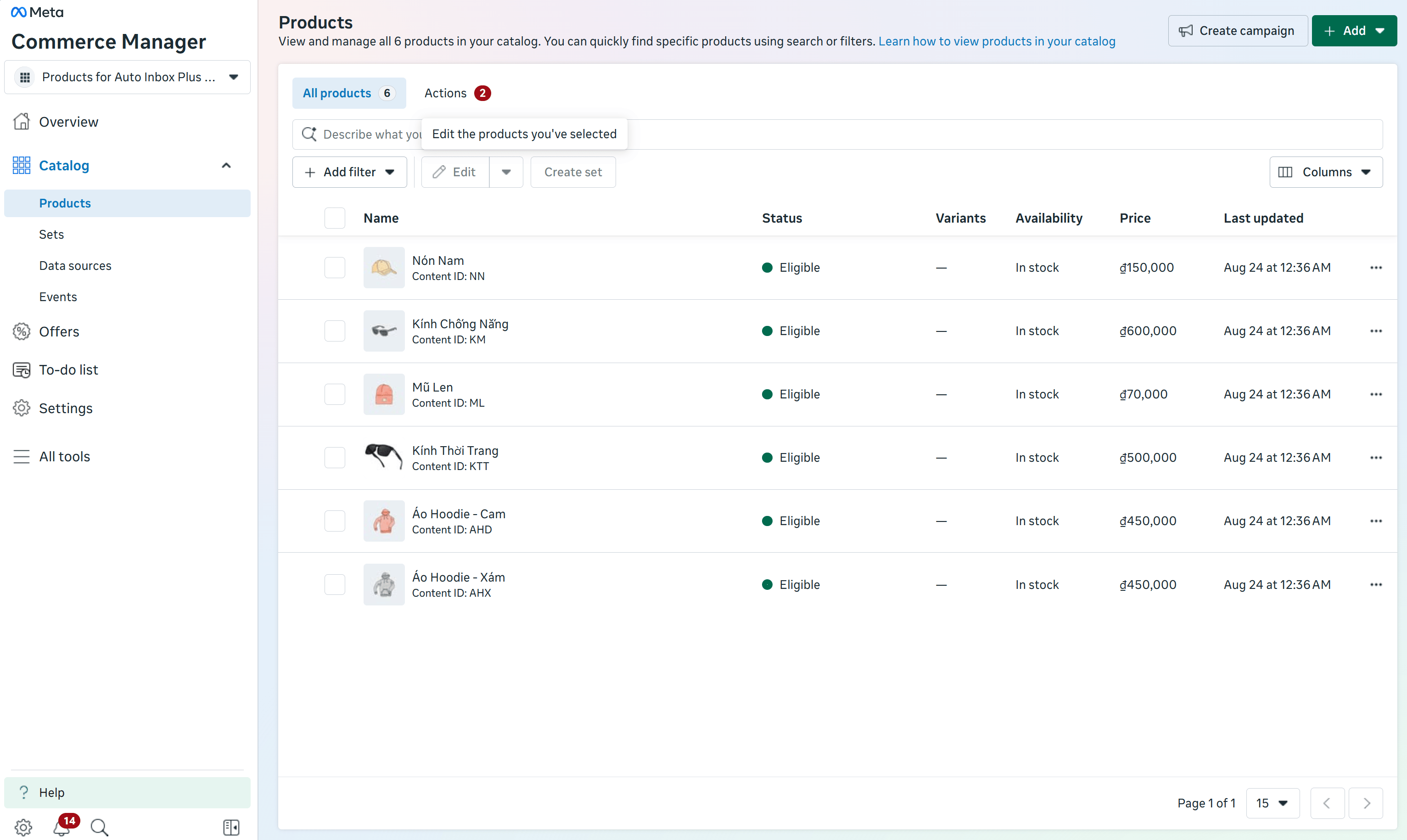
Once synchronization is complete, open Meta Commerce Manager to verify that all products have been approved and are active.
Step 2: Create a Live Shopping Session on AhaChat
Once your products are ready in the Catalog, create a Live Shopping session on AhaChat to set up order capture and automations.
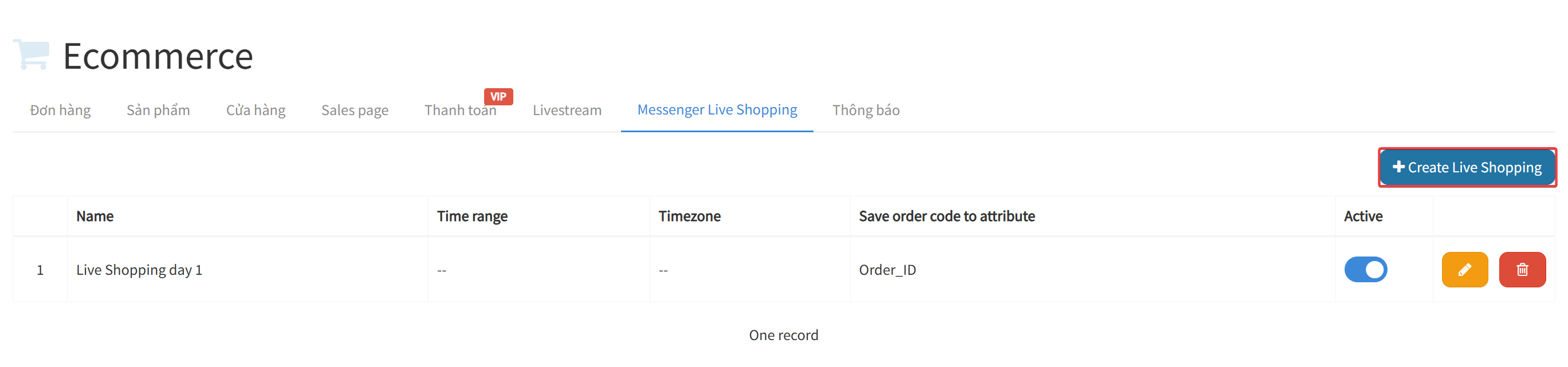
- In the left navigation menu of AhaChat, click Sales (Bán hàng) (1).
- Select the Messenger Live Shopping tab (2) on the top bar.
- Click the + Create Live Shopping (+ Tạo Live Shopping) button (3) in the top-right corner.
- In the Update Live Shopping (Cập nhật Live Shopping) dialog, configure the following fields:
| Field | Configuration Guide |
|---|---|
| Name (Tên) | Enter a descriptive session name (e.g., Live Shopping Day 1, Weekend Mega Sale). |
| Run trigger on schedule (Chạy trigger theo khung giờ) | Toggle this switch ON (blue) to enable automated triggers during the live time window. |
| Timezone (Múi giờ) | Select your local timezone (e.g., (UTC+07:00) - Indochina Time - Ho Chi Minh City). |
| Start from / To (Bắt đầu từ / Đến) | Set the scheduled start and end date/time for the live broadcast. |
| Apply catalog (Áp dụng catalog) | Select the Catalog ID synchronized in Step 1. |
| Save order ID to attribute (Lưu mã đơn hàng vào thuộc tính) | Check the checkbox and select a custom customer attribute to store the order ID (e.g., Order_ID). |
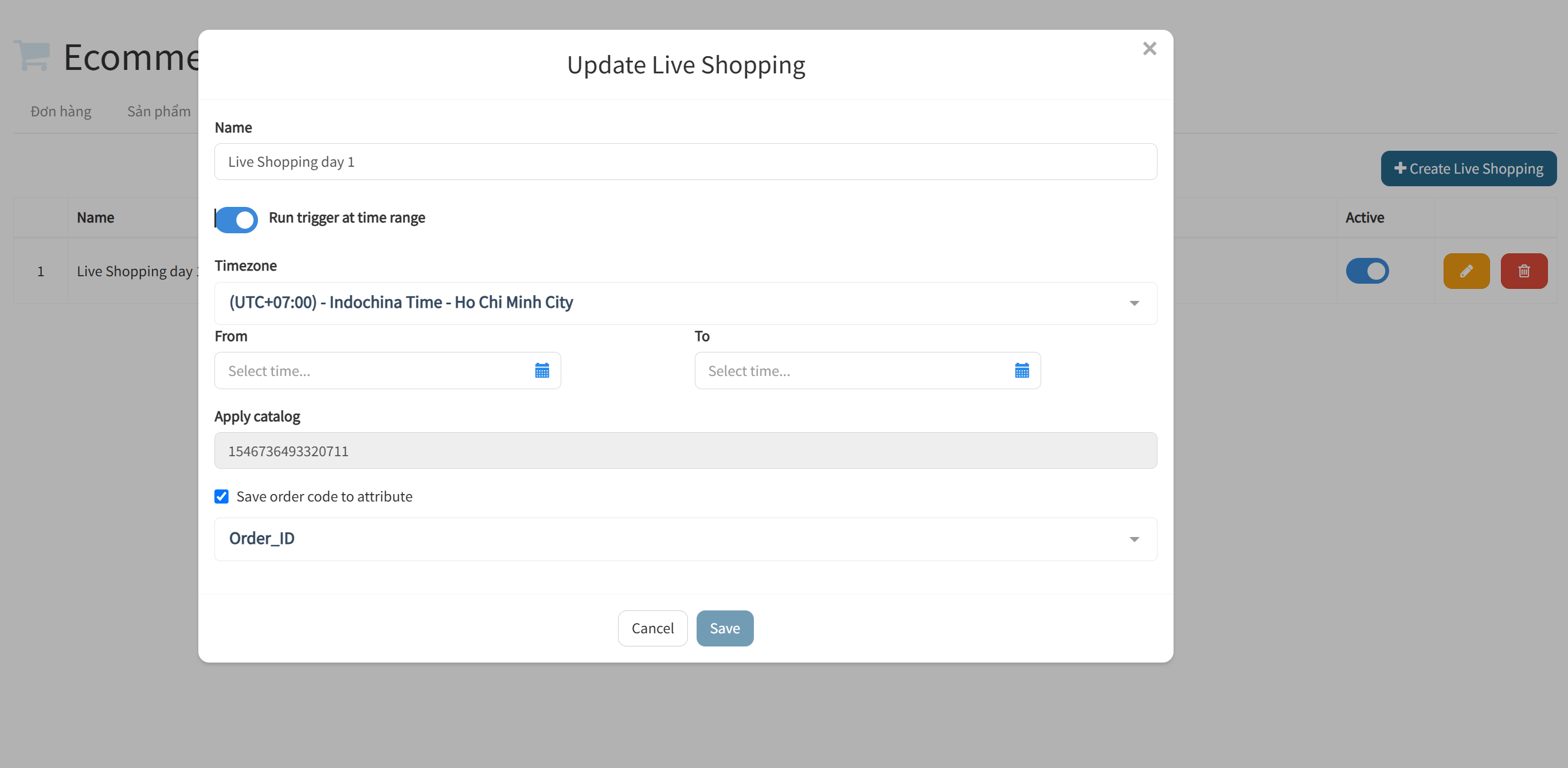
- Click Save (Lưu) to complete the setup.
- Verify that the toggle in the Active (Kích hoạt) column is switched ON.
Step 3: Set Up the Livestream on Facebook (Live Producer)
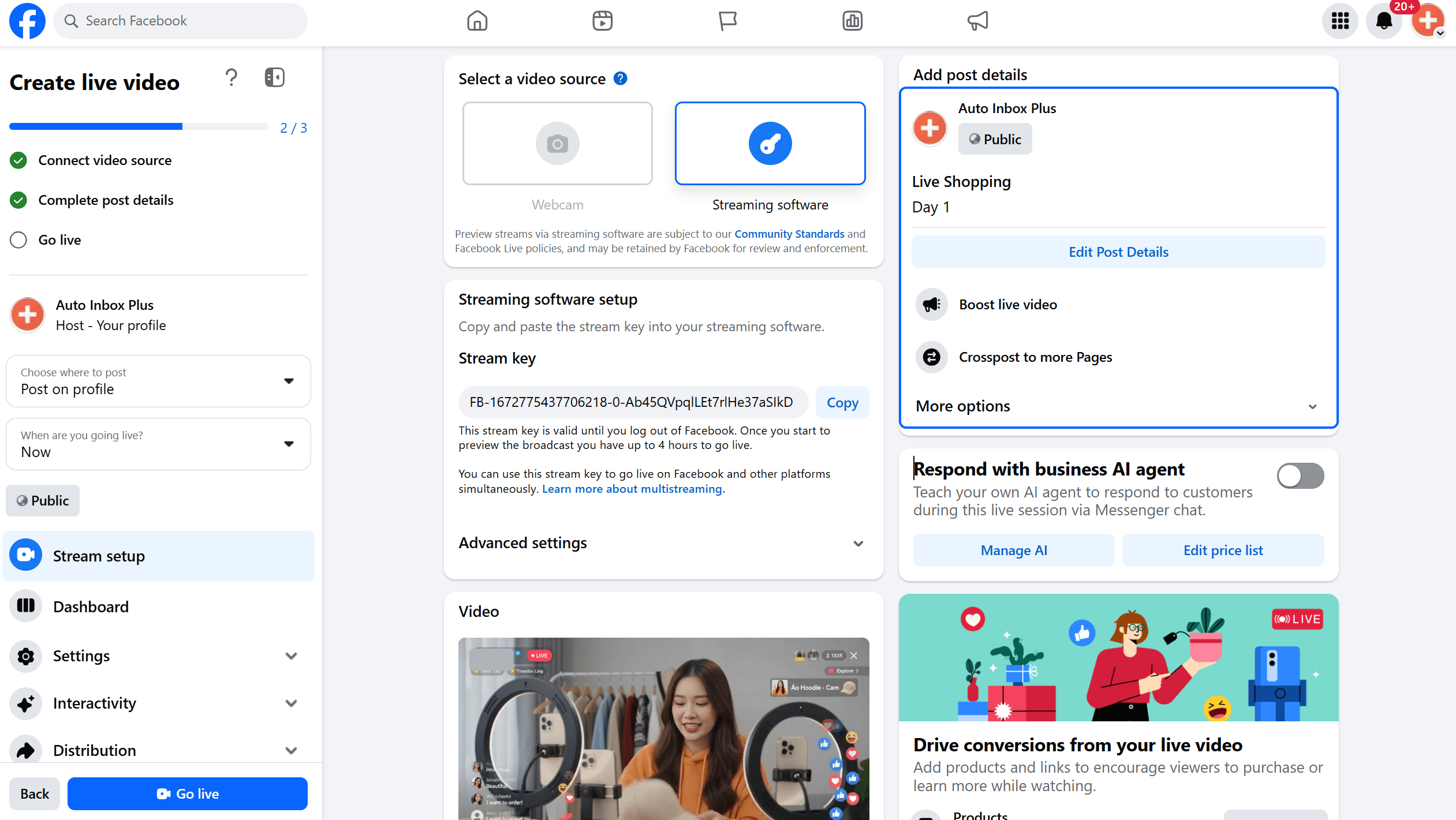
When you are ready to go live, set up your broadcast on Facebook:
- Open your Facebook Page on desktop.
- In the post creation box, click Live video (Phát trực tiếp) to launch Facebook Live Producer.
- Choose your video source:
- Webcam: Use your built-in camera or USB webcam.
- Streaming Software: Connect OBS Studio, vMix, or StreamYard using your Stream Key.
- In the right-hand panel, fill in the required details:
- Title (Mandatory): Write an engaging title highlighting live discounts.
- Description: Provide details about featured products, giveaways, or promo codes.
- In the Interactivity / Live Shopping settings, verify that your synchronized product catalog is linked to the stream.
- Click Go Live (Phát trực tiếp) to start broadcasting.
Step 4: Pin Featured Products During the Livestream
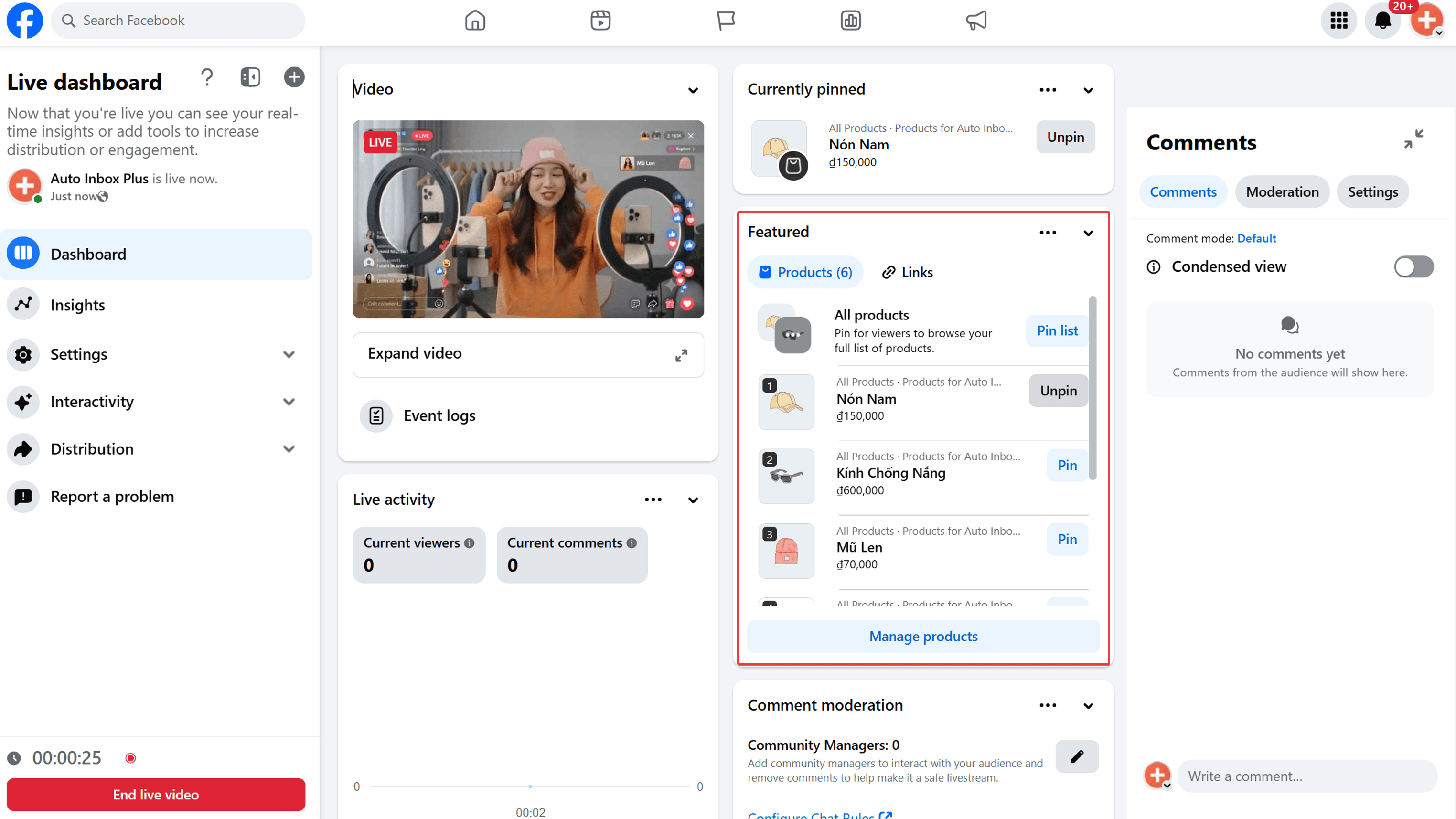
While streaming, direct viewers' attention to specific items by pinning products in real time as you introduce them:
- In the Facebook Live Producer dashboard, open the product catalog tab.
- Next to the product you are currently presenting, click Pin (Ghim).
- The pinned product will appear prominently as an overlay on viewers' screens with its thumbnail, title, and live price.
Viewer Experience on Livestream
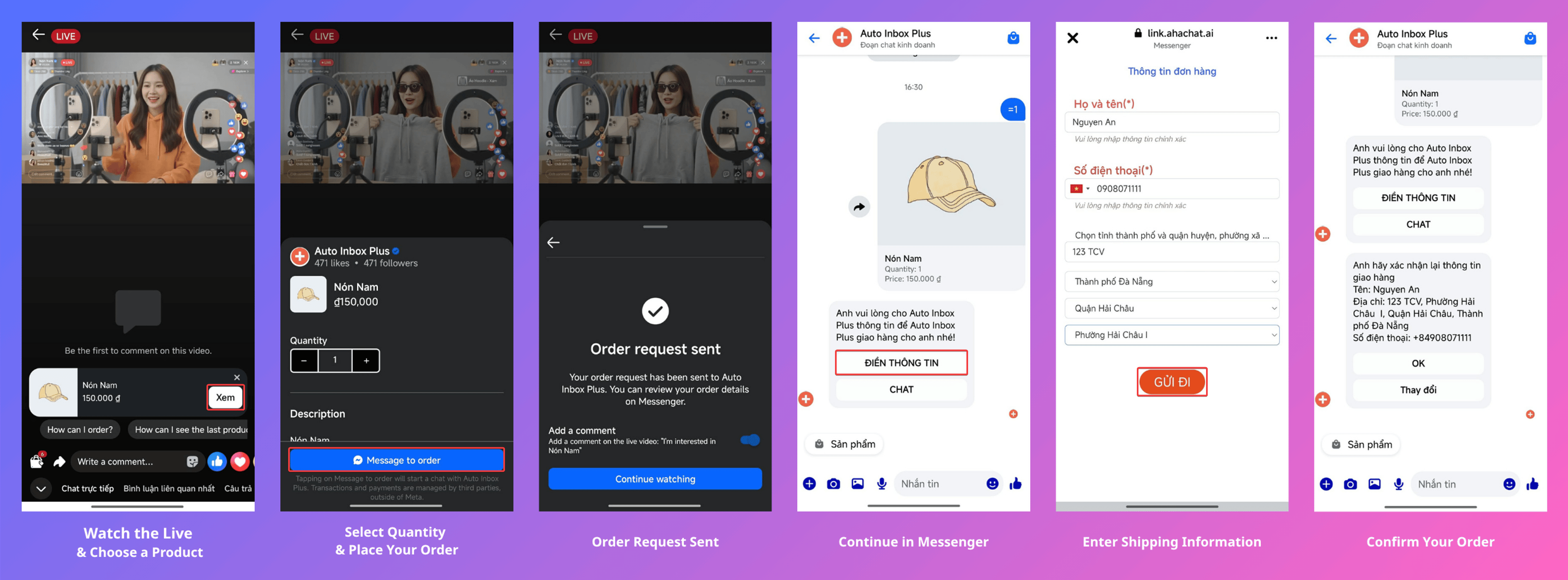
- Viewers tap the pinned product overlay or the shopping bag icon to view product details.
- Customers select quantities, variants (size, color), and tap Add to Cart or Buy Now.
- A checkout drawer or Messenger prompt opens for the viewer to input shipping details and complete the purchase without leaving the live video stream.
Step 5: Receive and Manage Orders on AhaChat
Once customers place orders during the broadcast:
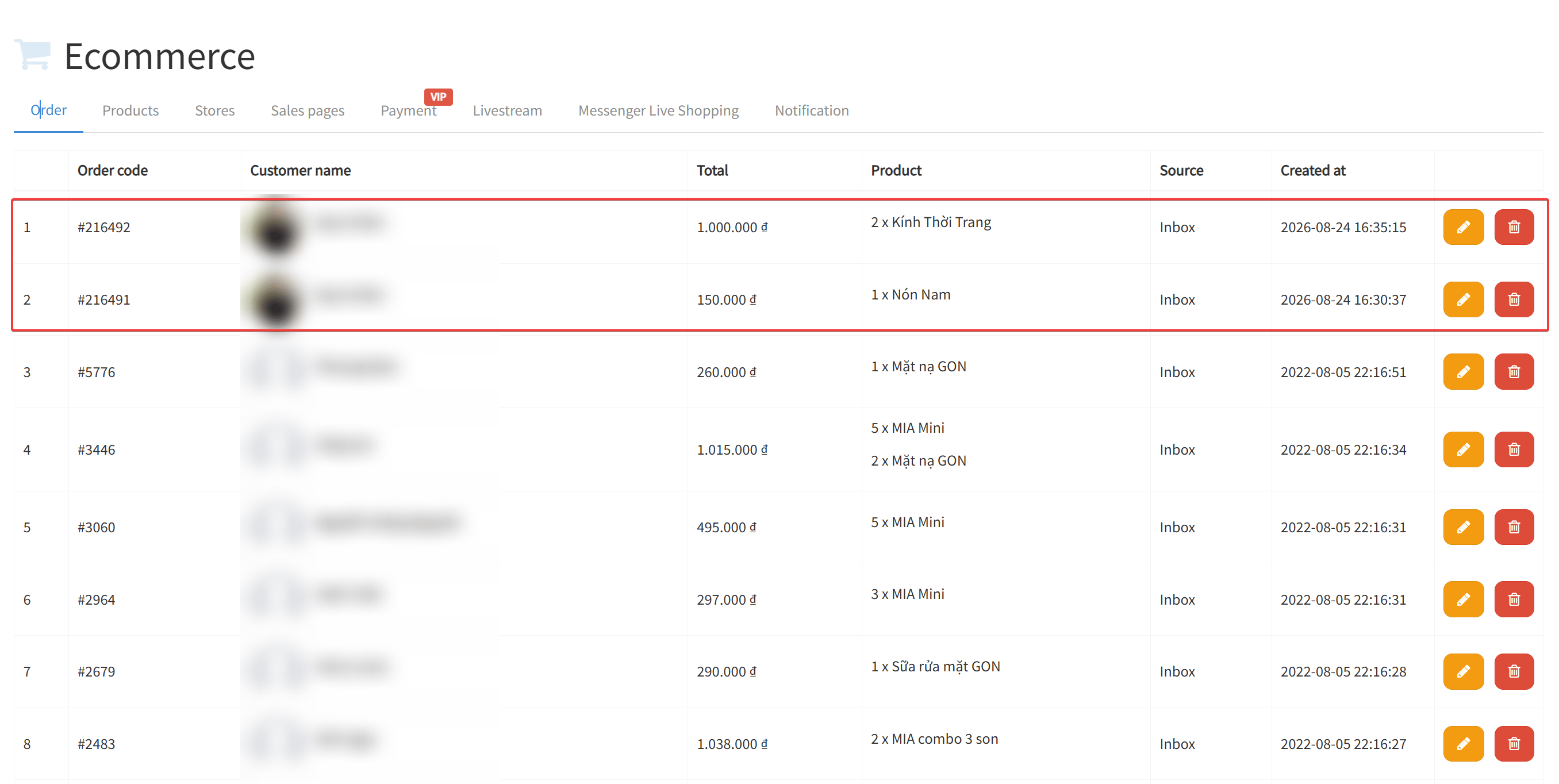
- Automatic Order Capture: New orders instantly sync to AhaChat under Sales > Orders (Bán hàng > Đơn hàng).
- Customer Attribute Mapping: The order ID is stored in the mapped custom field (e.g.,
{{Order_ID}}), tagging the customer record. - Automated Follow-ups:
- Trigger automated Messenger chatbot flows to send order confirmations, digital receipts, and tracking links.
- Support agents can track, update, and manage order statuses (Pending, Shipping, Completed) directly inside AhaChat.
Best Practices for Successful Live Shopping
Tips:
- Pre-plan Product Lineup: Number your products in advance so the technical operator can pin the corresponding item the moment the host speaks about it.
- Run a Test Broadcast: Conduct a private/unlisted test live stream before going public to verify catalog linking and test order submission to AhaChat.
- Post-Live Chatbot Automation: Set up automated post-live sequences to offer discount vouchers for future purchases and convert one-time buyers into loyal customers.