WhatsApp Coexistence
WhatsApp API Coexistence allows you to retain your existing WhatsApp Business number when connecting to AhaChat. This setup enables you to use both the WhatsApp Business mobile app and the WhatsApp API on the same number simultaneously, while syncing contacts and chat history so you can continue engaging with customers without interruption.
Overview of WhatsApp API Co-Existence
With this connection method, you will be able to:
- Use the WhatsApp Business app on your phone and the WhatsApp API in AhaChat at the same time
- Sync contacts and chat history from the mobile app to the system
- Continue replying manually on your phone when needed
- Unlock additional WhatsApp API features in AhaChat such as Template Messages, Automation, and centralized conversation management
Note: This feature is not available in all countries and regions. Availability depends on the phone number’s country code and Meta’s current policies at the time of setup.
Before You Begin
Please prepare the following information:
- Your active WhatsApp Business phone number
- A Meta Business account with access to that number
- Business display name
- Website, business category, and time zone
Integration Guide
Step 1: Create a Bot and grant access to Business Manager (BM)
Log in to your AhaChat account.
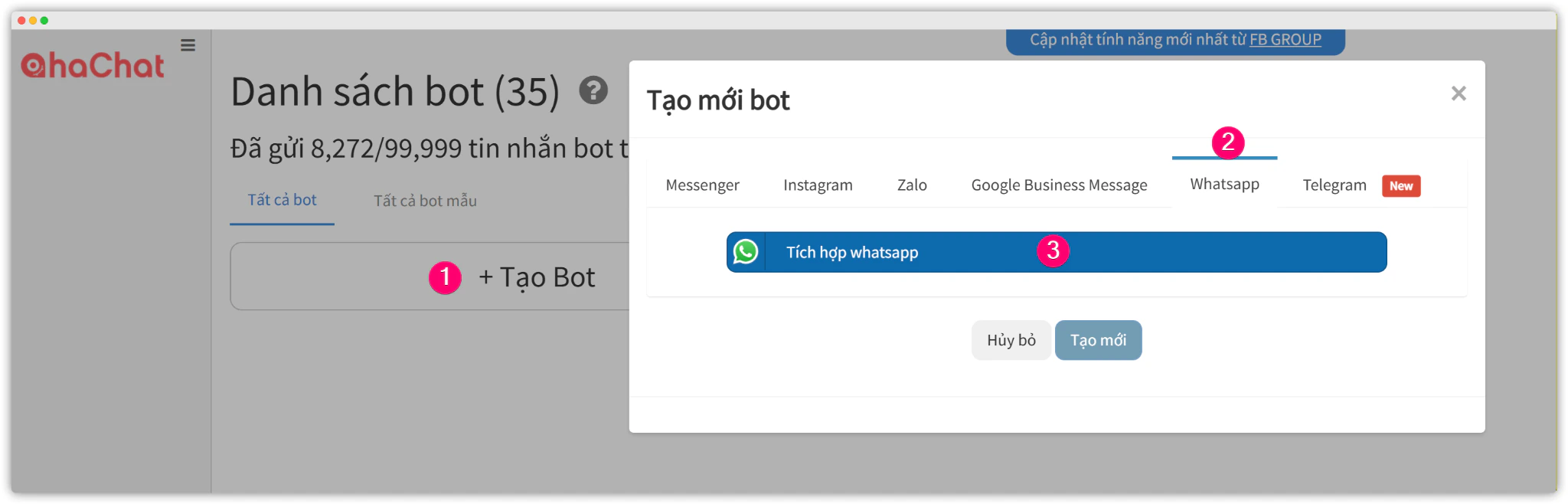
Click + Create Bot → Select the WhatsApp tab → Click Integrate WhatsApp.
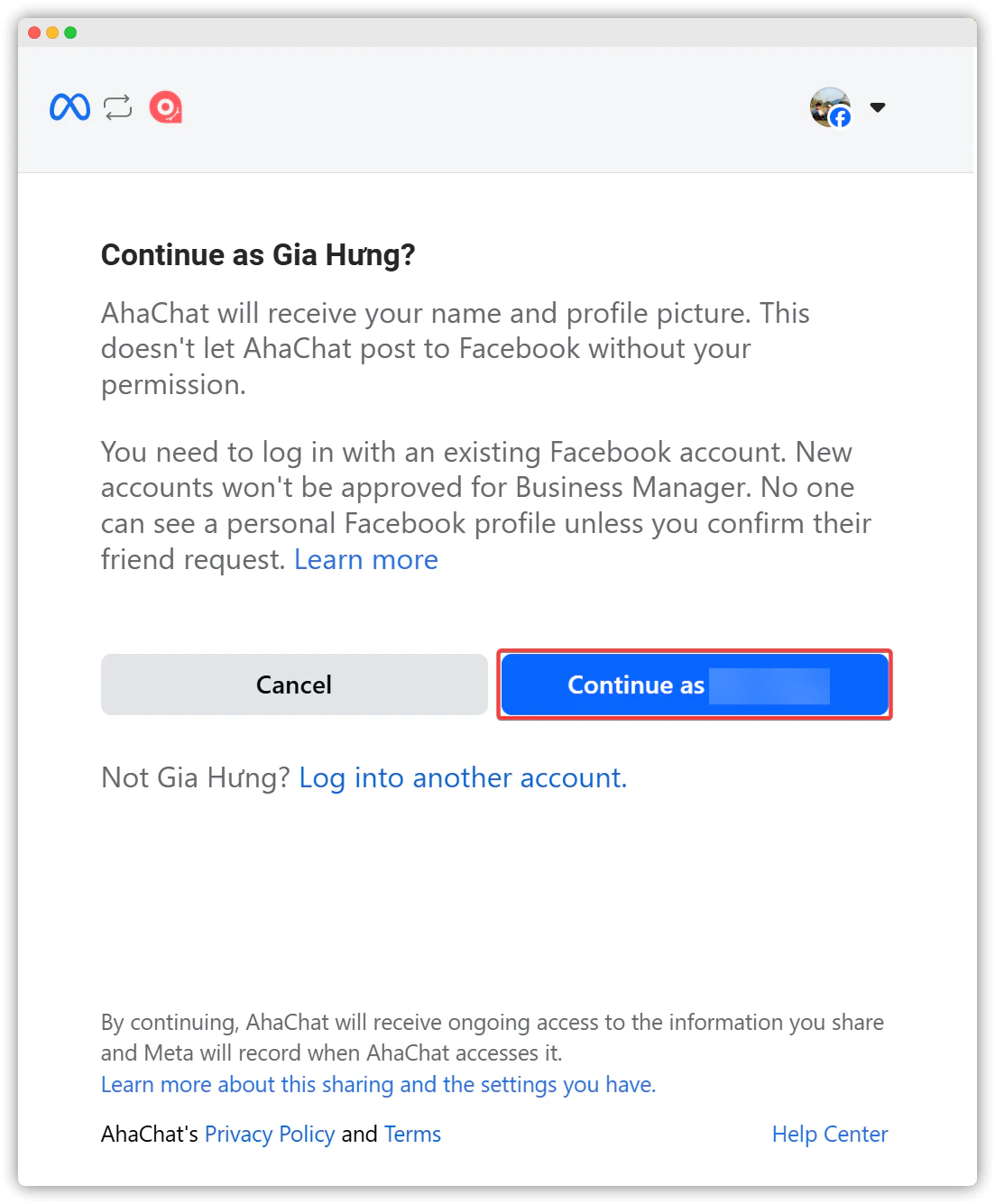
Select Continue as [fb_name] to log in to your Facebook account.
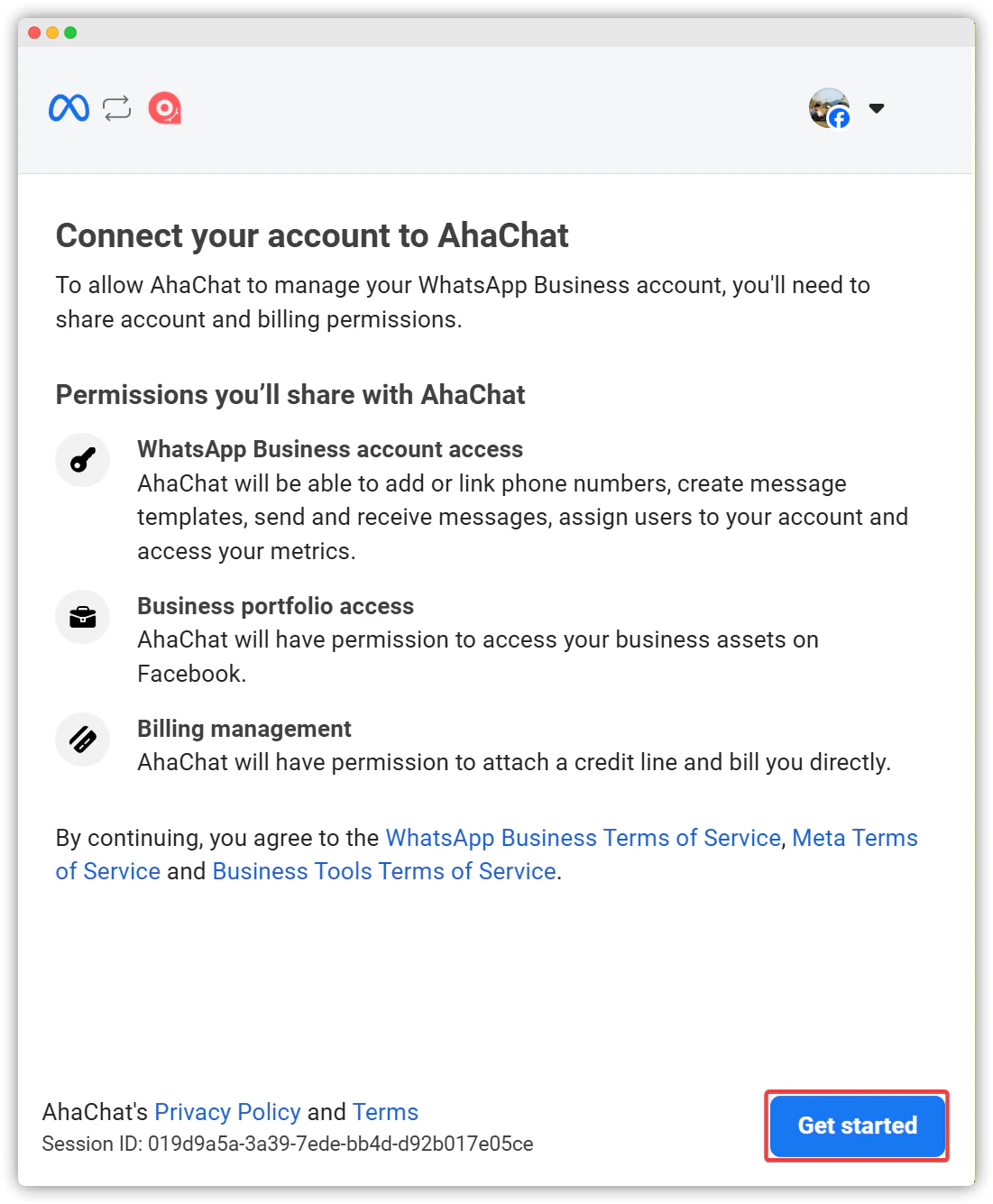
Click Get started
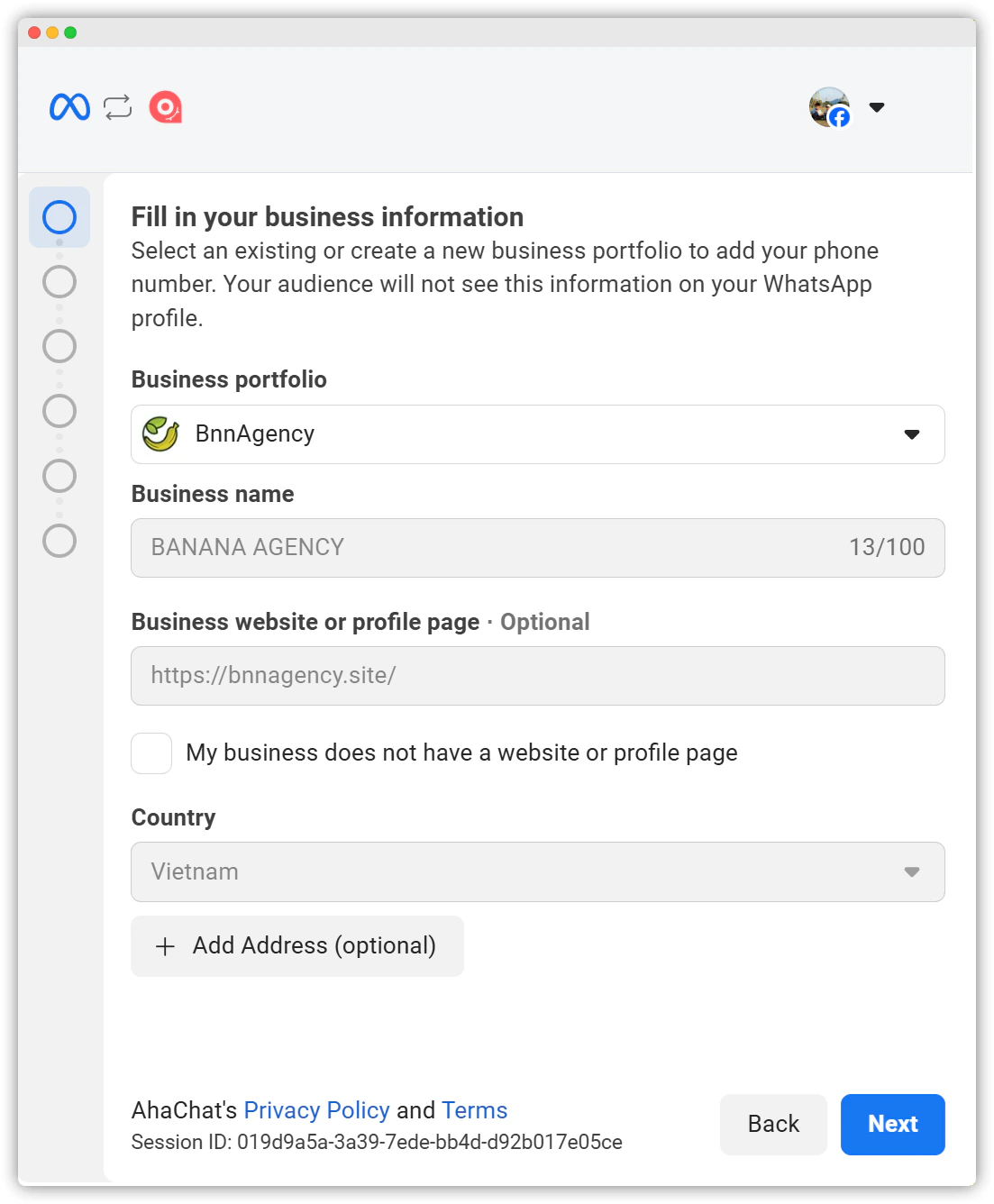
Select your Business Manager account and fill in the required information → Click Next
In the next step, you will see a prompt asking you to connect your existing WhatsApp Business app. Choose Connect your existing WhatsApp Business App → Next.
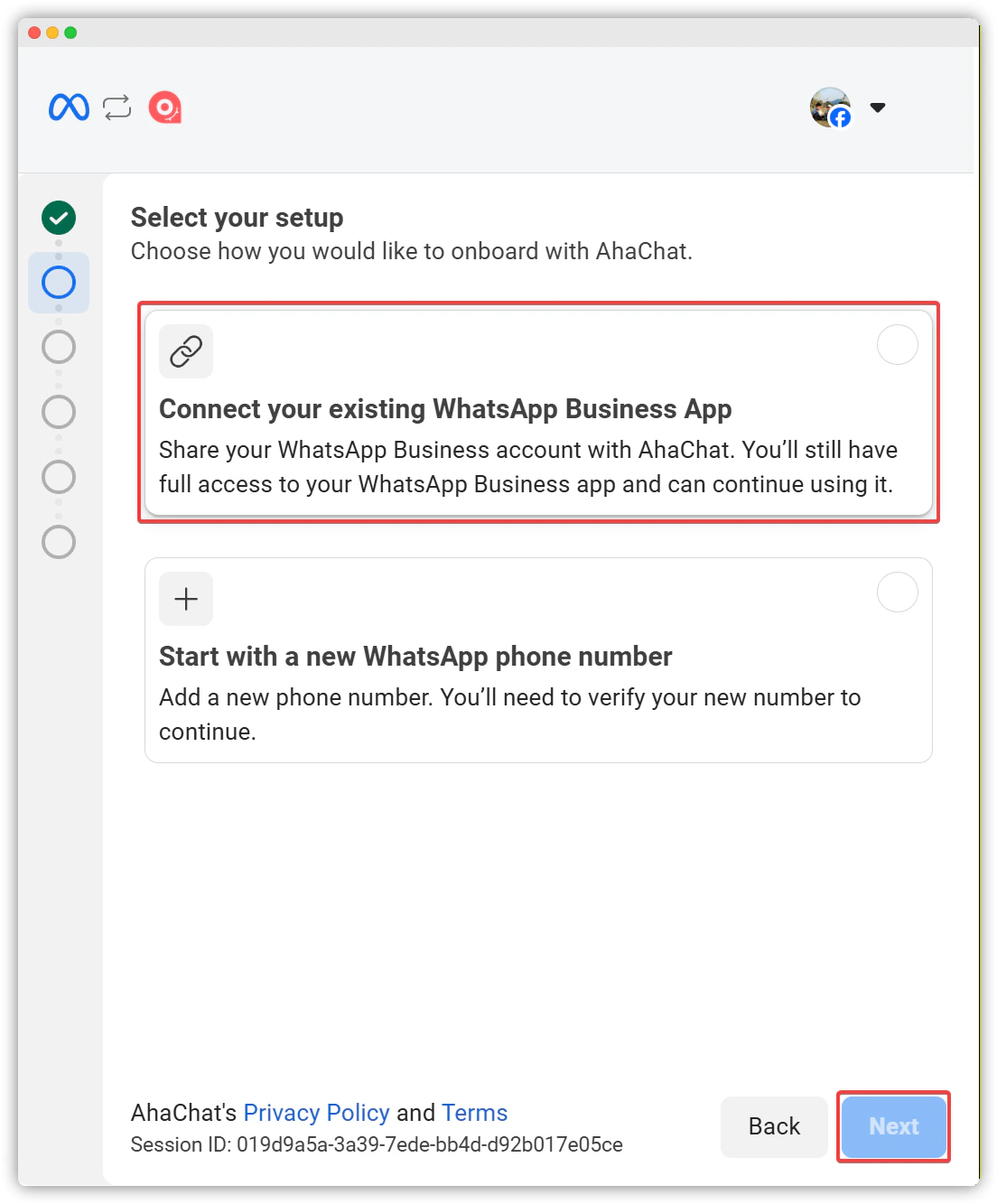
After selecting this option, you will be prompted to add your WhatsApp number.
Enter the phone number currently used on your WhatsApp Business mobile app → Click Next
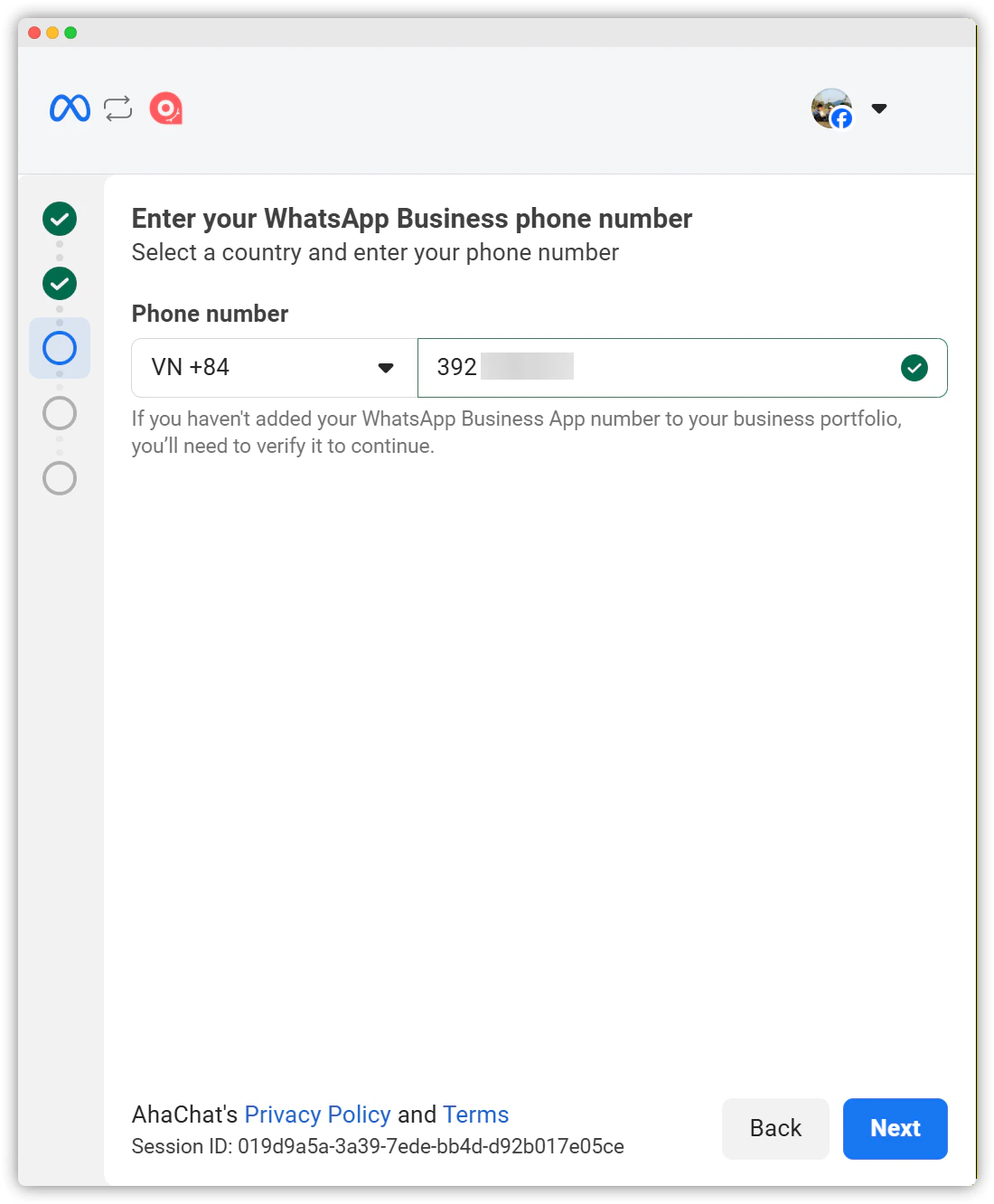
Step 2: Link your WhatsApp account using a QR code
A QR code will appear along with instructions to scan it to sync contacts and chat history.
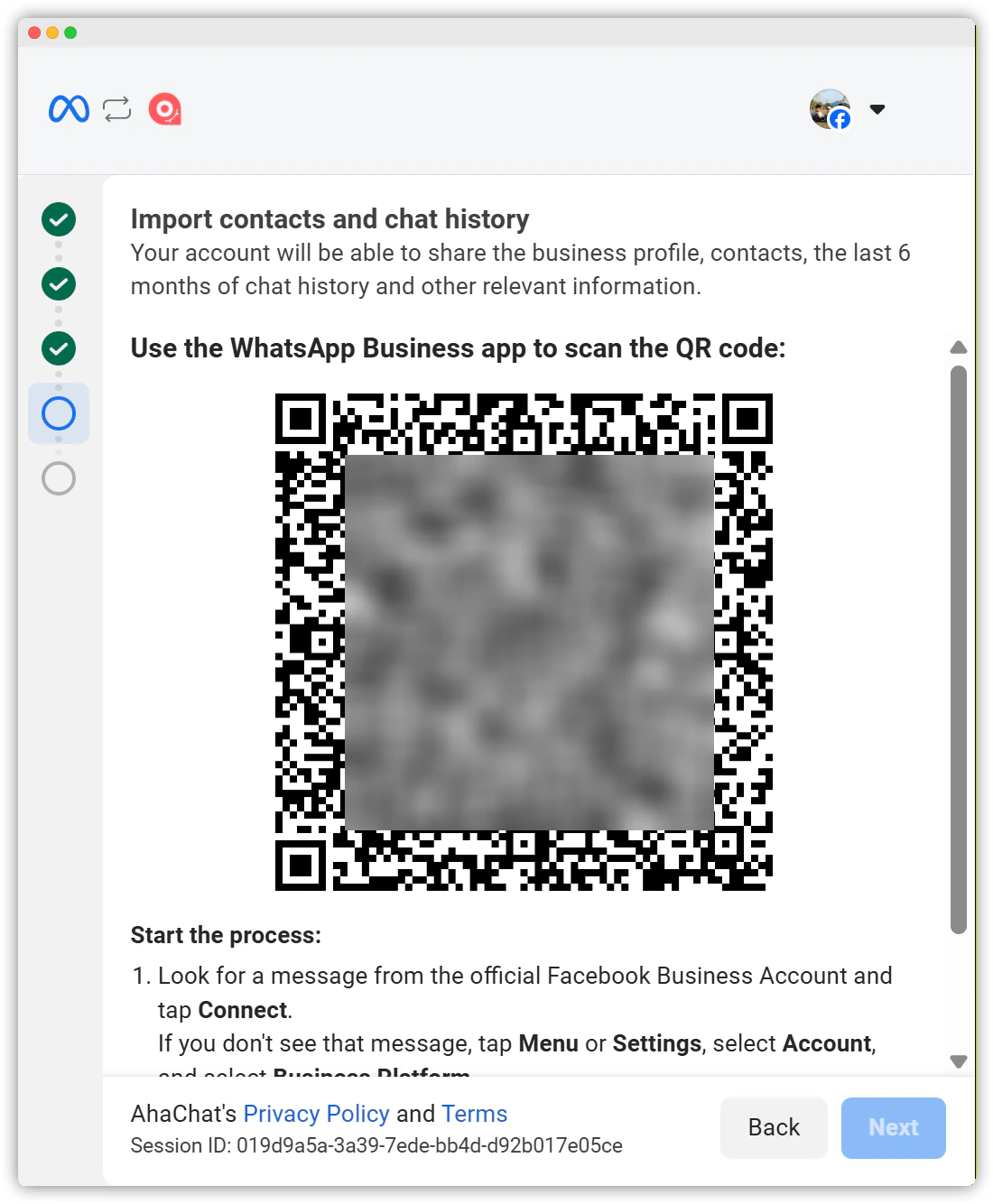
Step 3: Import chat history and scan QR code to connect
Open the WhatsApp Business app on your phone and check the message from the Facebook Business account. Tap Connect, follow the steps, and scan the QR code.
The connection process may take up to 2 minutes. Once completed:
- All contacts will be automatically imported
- Conversations will be imported based on your selection
- AhaChat will automatically receive confirmation from Meta
- You will see a confirmation screen in the WhatsApp Business app (also accessible via (Settings → Account → Linked to Business Platform)
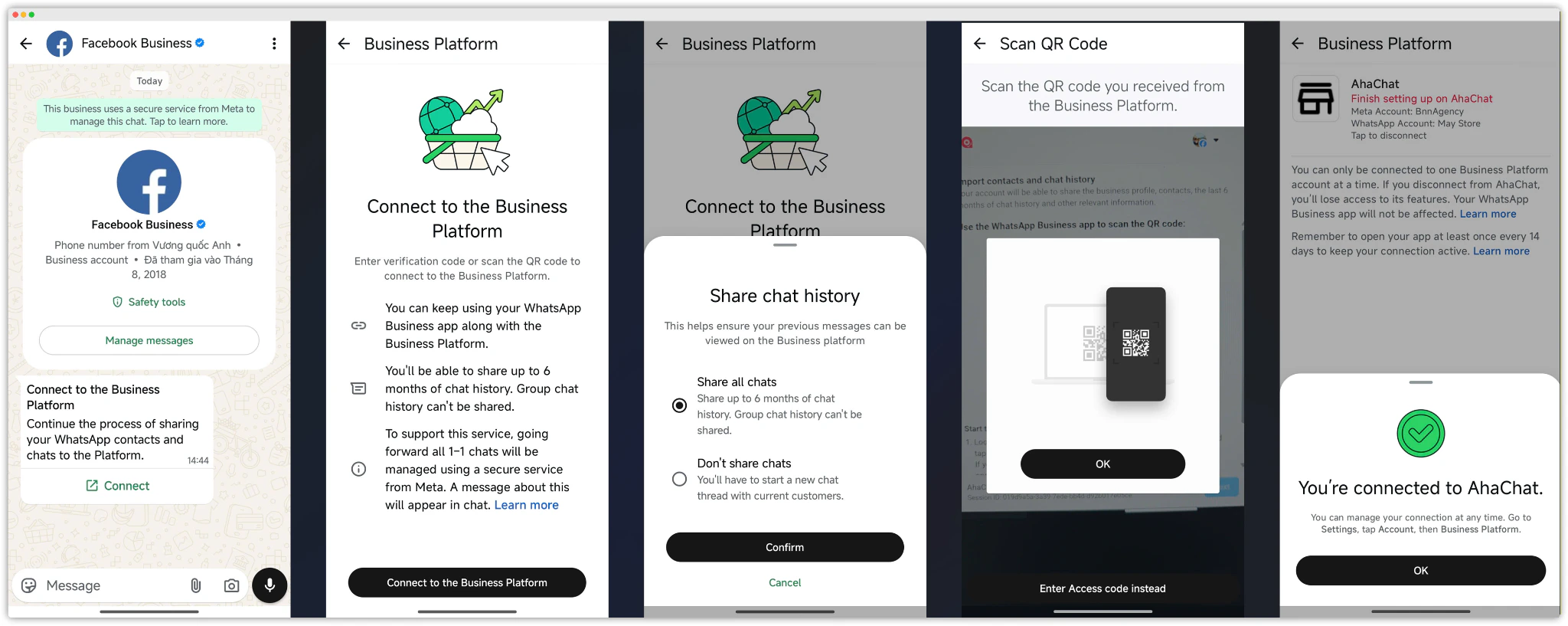
Step 4: Confirm connection status
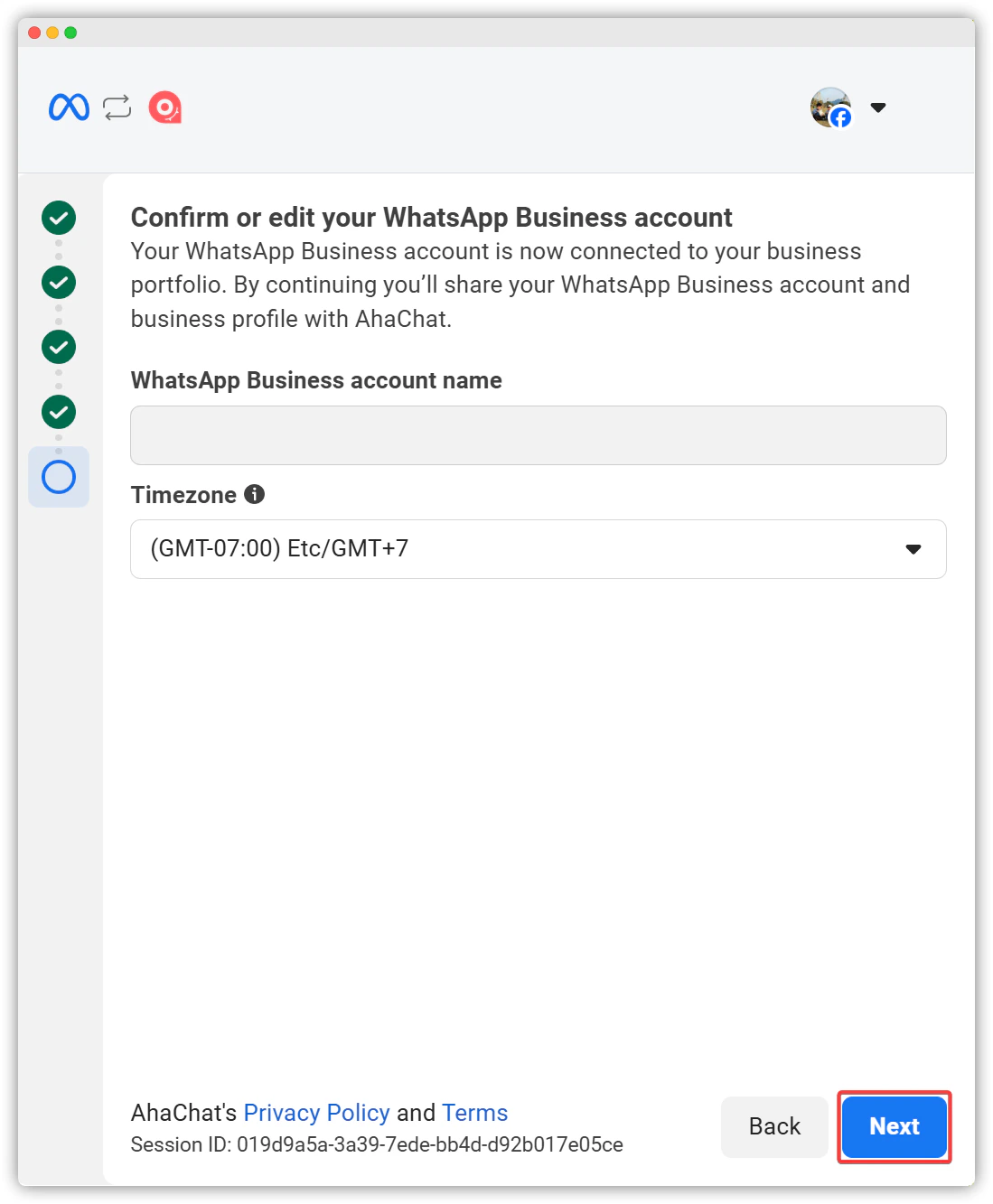
After completing the steps on your phone, return to the integration interface. Wait a moment until your account name appears, update your time zone, and click Next.
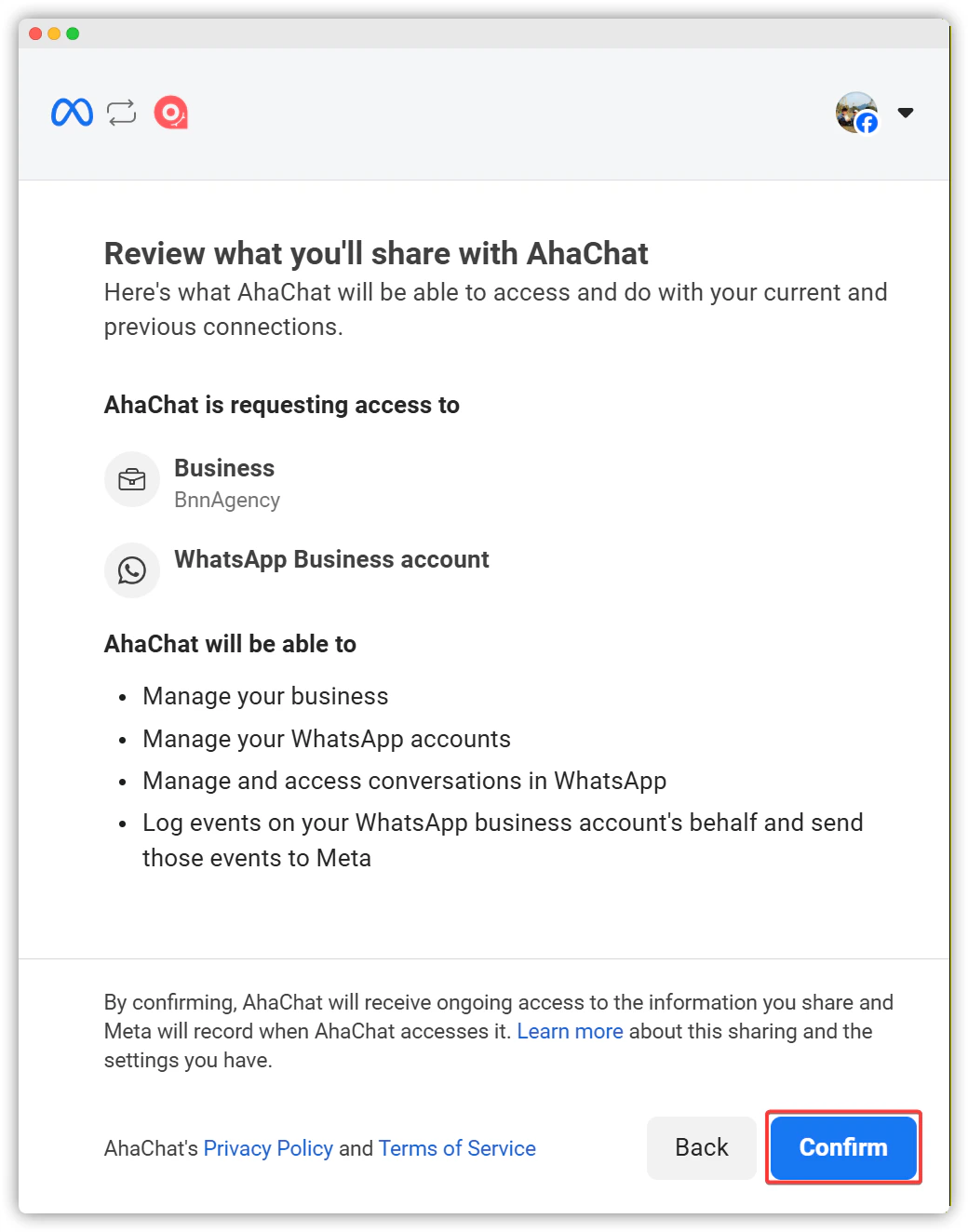
Review AhaChat’s permissions and click Confirm to proceed
Finally, click Finish to complete the integration process.
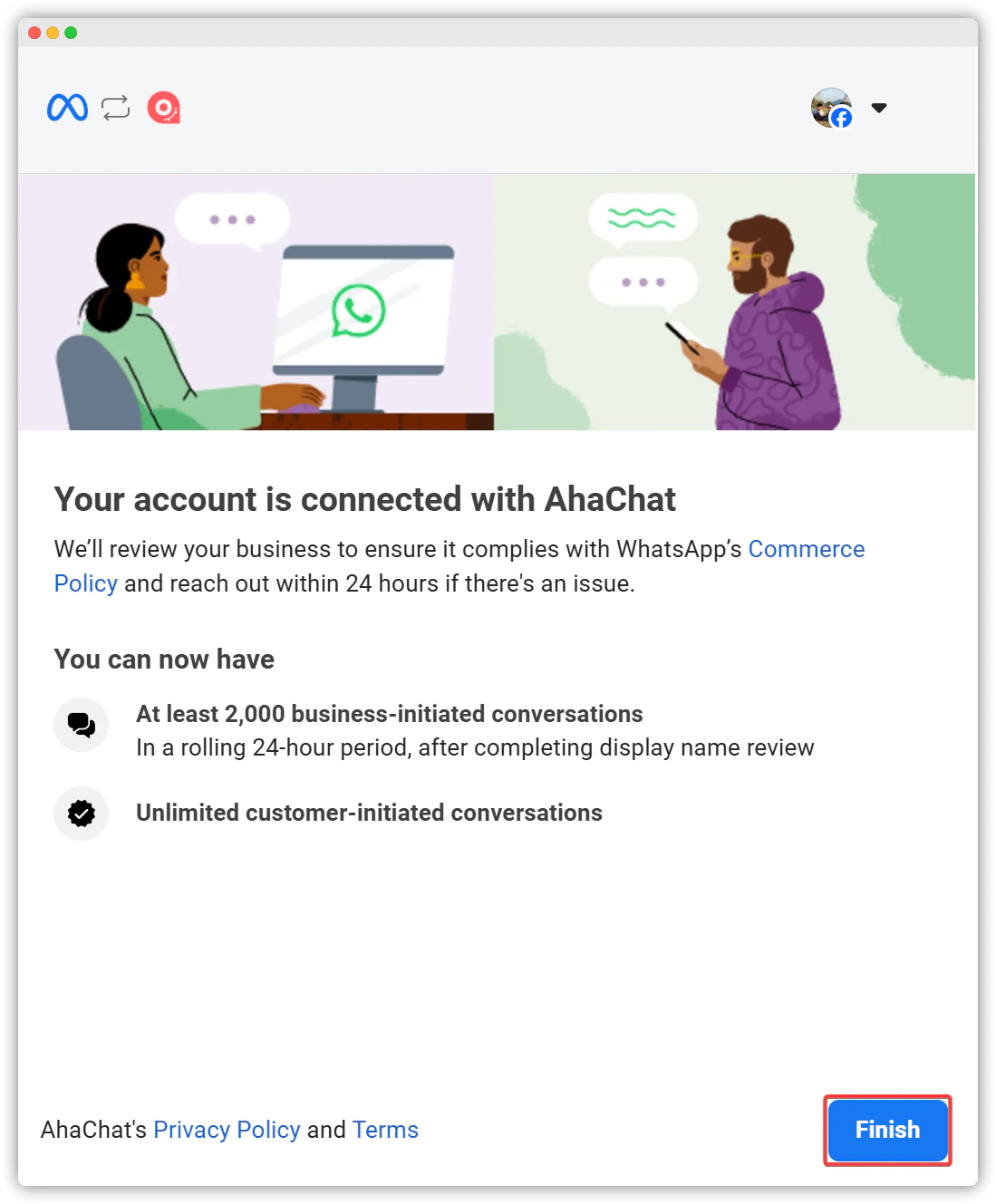
Note: Please wait 1–2 minutes for the system to sync messages. If you encounter any issues, refresh the page (F5) and try reconnecting. Chat history from 1:1 conversations within the last 6 months will be synced into AhaChat.
AhaChat will automatically start syncing your contacts and chat history (including media).
Check connection status after syncing
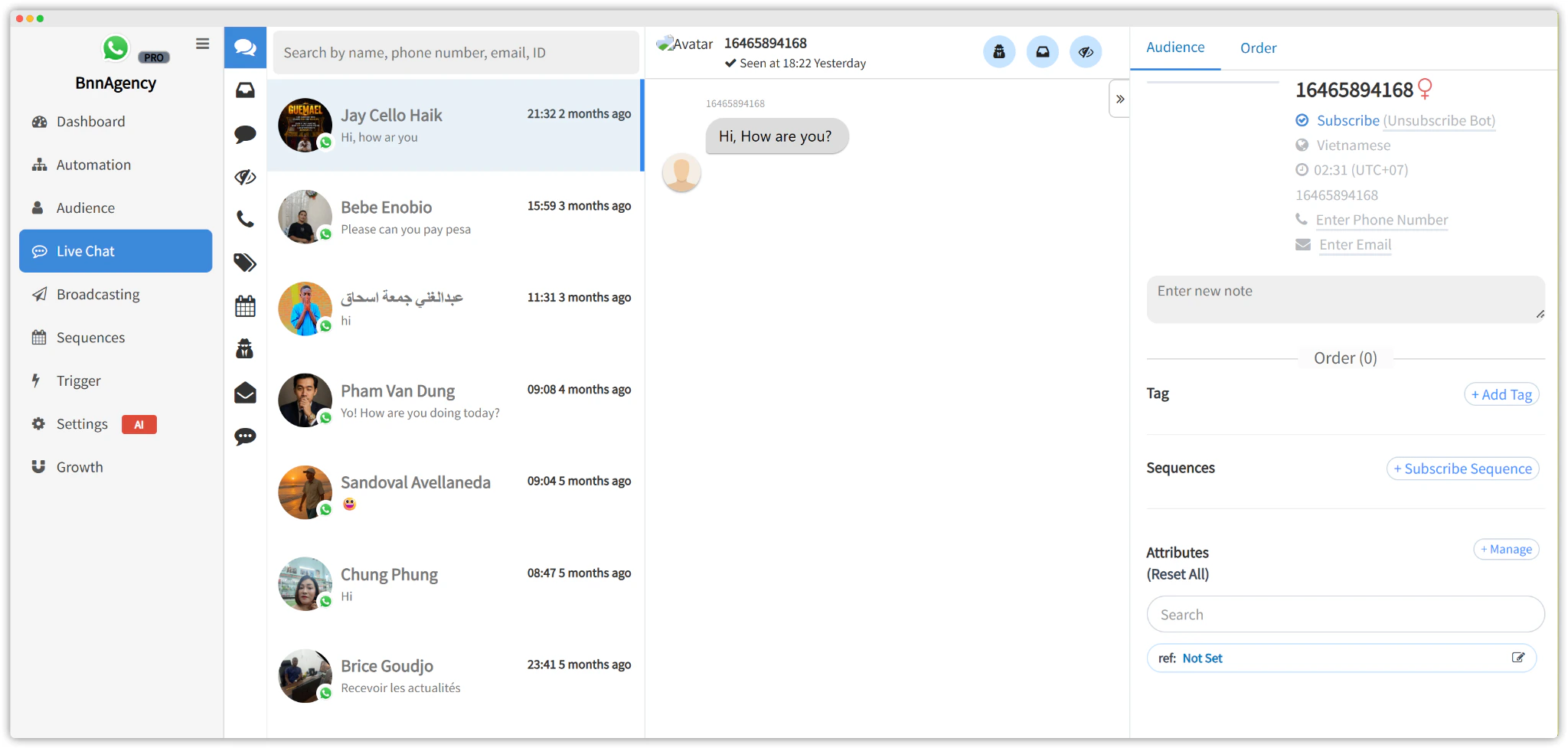
Once contacts and conversations are synced, you will see:
Contacts listed in the Audience menu in AhaChat
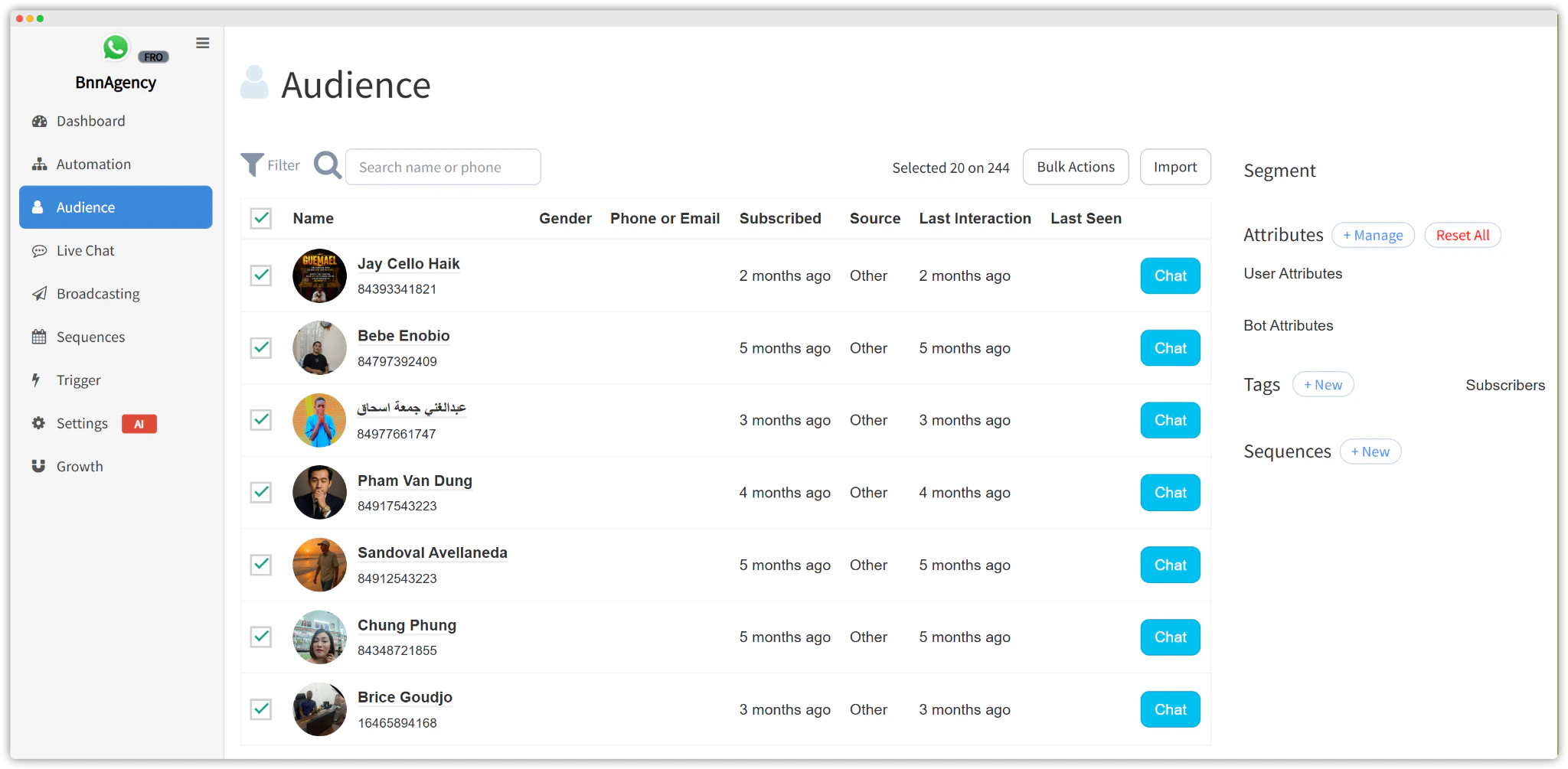
Synced conversations appearing in the Live Chat menu
Automation
The WhatsApp Business app includes basic automation features such as greeting messages and away messages.
If you are currently using these features, make sure to disable them before using AhaChat.
Messaging Fees
After your business is set up on the Cloud API:
- Messages sent via the WhatsApp Business app will remain free
- Messages sent through AhaChat will follow Meta’s Cloud API pricing
FAQ
1. What is WhatsApp Coexistence (Coex)? WhatsApp Coexistence (Coex) is a solution from Meta that allows you to connect your existing WhatsApp Business app to AhaChat’s Cloud API platform without losing data or re-registering your phone number.
2. What are the benefits of using WhatsApp Coexistence? Coex allows you to migrate to AhaChat’s Cloud API while retaining your chat history, contacts, and phone number, ensuring a seamless transition.
3. Can I keep my existing WhatsApp Business number? Yes! Coex allows you to reuse your active WhatsApp Business number when connecting to AhaChat.
4. Are contacts and chat history synced? According to AhaChat’s current documentation, the system supports syncing contacts and chat history during the connection process.
5. Why am I limited in sending messages right after connecting? This is usually a temporary restriction while Meta reviews your account and Display Name